How to Track Play Sessions on muOS with retroshelf
Install the retroshelf plugin on any muOS device (Anbernic RG35XX, RG34XX, TrimUI, and 10+ more) to automatically sync every play session to your collection.
What you need
Install the plugin
Download the plugin
Download the latest .muxapp file for your muOS device.
Enable User Init
Go to Configuration › General Settings › Advanced Settings and enable User Init Scripts. This allows retroshelf's boot script to retry any sessions that failed to sync while offline.
Copy to your SD card
Copy the .muxapp file into the ARCHIVE/ directory on your SD card.
Install from Archive Manager
On your device, open Archive Manager and install the retroshelf archive. This installs the app, sync hooks, and boot script.
Launch and link your device
Open retroshelf from the Apps menu. Press A to start the linking flow. A 6-character code appears on screen.
On your phone or computer, go to retroshelf.org/link and enter the code. Your device confirms the link automatically and imports your existing play history.
Play games
That's it. Every game session syncs to retroshelf in the background when you exit. No manual tracking, no extra steps.
How sync works
After every game
retroshelf records when games start and stop, then syncs completed sessions when you quit. Time spent suspended is excluded.
On boot
A catch-up sync retries any sessions that failed, for example if WiFi was off when you last played.
First sync
Existing muOS play time is imported once. Historical dates are approximate when timestamps are unavailable.
Offline resilient
If WiFi is unavailable, sessions are saved locally and synced on the next opportunity. Nothing is lost.
Compatible devices
The retroshelf plugin works on any muOS device with WiFi, including:
Anbernic
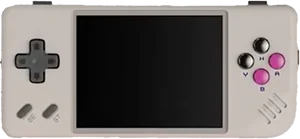
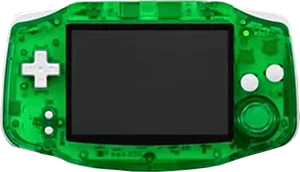
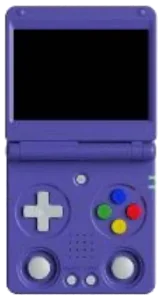
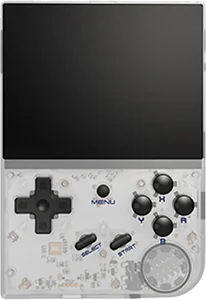
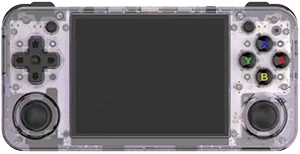
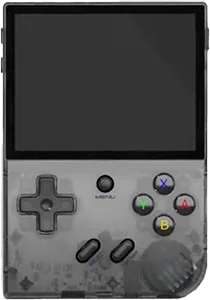
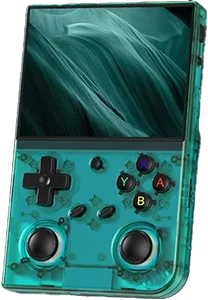
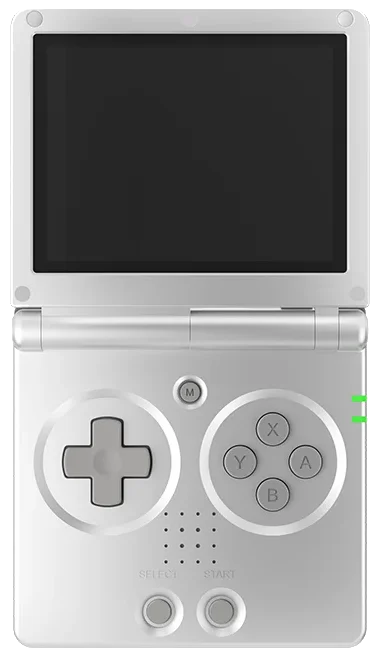
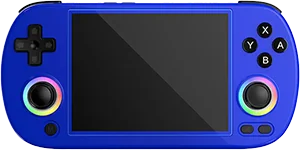
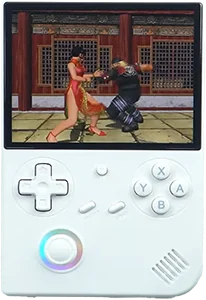
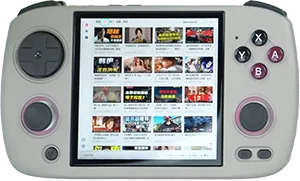
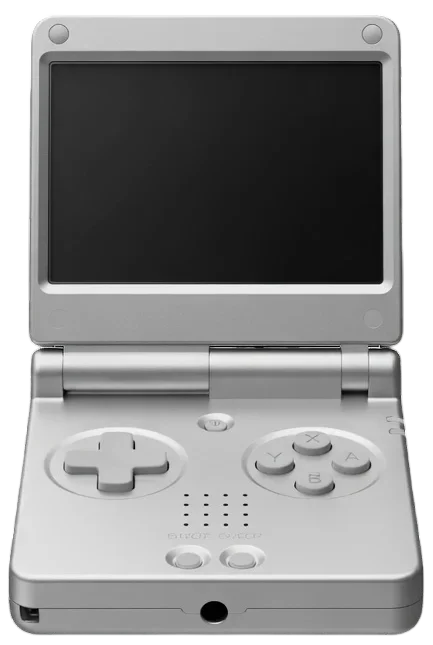
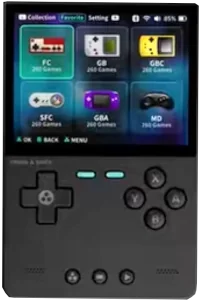
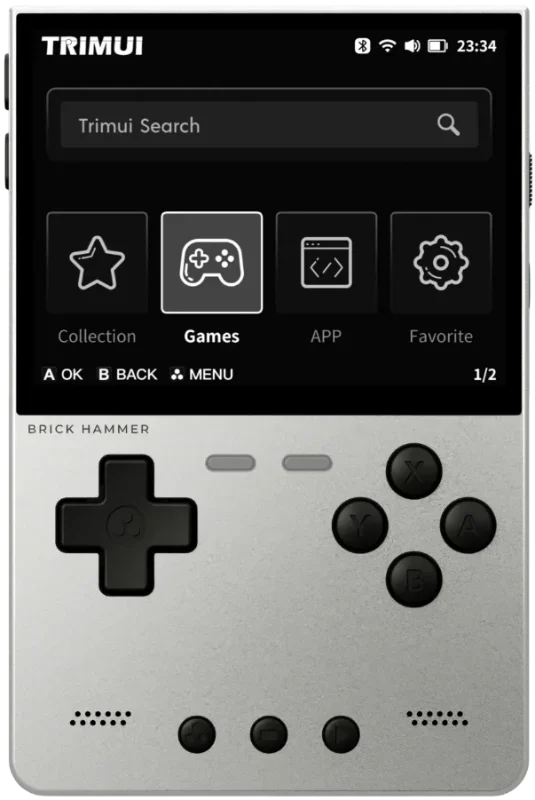
Don't see your device? If it runs muOS and has WiFi, the plugin should work. The steps are the same for all muOS devices.
Troubleshooting
Sessions not syncing after games
Verify that the sync hooks are installed. Relaunch retroshelf from the Apps menu. The app re-installs hooks automatically on every launch.
Boot sync not working
Make sure User Init is enabled in muOS Advanced Settings. The boot script uses this to retry failed sessions and re-patch hooks on startup.
After a muOS update
Hooks self-heal on the next boot via the boot script. If any sessions were missed during the update, open retroshelf and press A to trigger a manual sync.
Set up in under 5 minutes
Download the plugin and link your muOS device.
Questions
Does the retroshelf plugin need WiFi to track play time?
WiFi is only needed for syncing. If WiFi is unavailable, sessions are stored on the device and synced automatically the next time WiFi connects. Nothing is lost.
What happens to my play sessions after a muOS update?
The plugin's boot script re-installs sync hooks automatically after a muOS update. If any sessions were missed, launch retroshelf from the Apps menu to trigger a manual sync.
Does the plugin import my existing play history?
Yes. Existing play time recorded by muOS is imported once, alongside new sessions recorded by retroshelf. Historical dates are approximate when muOS hasn't retained timestamps. There's no separate import step.
How do I uninstall the retroshelf plugin?
To unlink, go to Settings on retroshelf.org and revoke the device. To remove the plugin, delete the retroshelf folder from your applications folder on the SD card.
Will the retroshelf plugin slow down my device?
No. The sync runs in the background after you exit a game. It doesn't affect gameplay and finishes in a few seconds.