Track play sessions on SpruceOS with retroshelf
Install the retroshelf plugin on SpruceOS and send your play sessions to your collection.
Install the plugin
Download the plugin
Download the SpruceOS plugin and unzip it.
Copy to your SD card
Put the retroshelf/ folder in App/ on your SD card.
Launch and link
Open retroshelf from the Apps menu on your device. You'll see a 6-character code.
On your phone or computer, go to retroshelf.org/link and enter the code. The app links your device automatically.
Play games
Play normally. When you leave a game, retroshelf syncs the session if your device is online. You can also open retroshelf any time to sync manually.
How sync works
Native play history
retroshelf's plugin hooks into the play history SpruceOS already keeps.
Works offline
No WiFi? Sessions stay on the device and sync the next time you're online.
Automatic sync
After setup, new sessions sync when you finish a game. You can still open retroshelf to sync manually.
Existing history
The first sync can bring over play sessions SpruceOS already recorded.
Clock-jump protection
If the device clock jumps, retroshelf skips sessions that clearly cannot be right, like runs longer than 12 hours.
Compatible devices
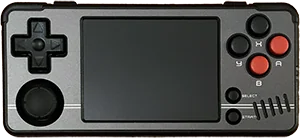
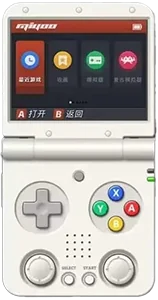
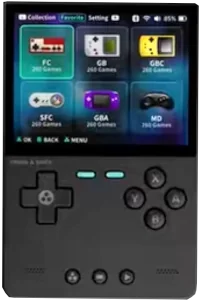
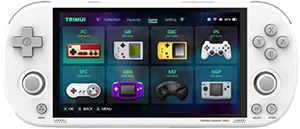
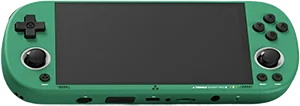
The retroshelf plugin works on stable SpruceOS devices with WiFi. These are currently supported:
Questions
Does the retroshelf plugin need WiFi to track play time?
WiFi is only needed to link and sync. When you're offline, the plugin keeps tracking locally and queues sessions until your device is online.
Does the plugin import existing SpruceOS play history?
Yes. The first sync brings in the play history SpruceOS already has. After that, retroshelf only sends new sessions.
What file does retroshelf read?
retroshelf reads Saves/spruce/activity.jsonl, the play history file SpruceOS writes.
How do I uninstall the retroshelf plugin?
To unlink, go to Settings on retroshelf and revoke the device. To uninstall, delete App/retroshelf/ and optionally delete /mnt/SDCARD/.retroshelf/.