Track play sessions on ROCKNIX with retroshelf
Install the retroshelf plugin on ROCKNIX and send your play sessions to your collection.
What you need
Install the plugin
Download the plugin
Extract into the Ports folder
Extract the zip into /storage/roms/ports/ so that retroshelf.sh sits next to a retroshelf/ folder. Over the network, that's the roms share's ports folder; on the games card, it's roms/ports/.
/storage/roms/ports/retroshelf/
Refresh the games list
Open the Start menu, go to Game settings › Update gamelists, or simply reboot the device. retroshelf then appears in the Ports category.
Launch and link
Make sure Wi-Fi is enabled in the network settings, then open retroshelf from the Ports category. You'll see a 6-character code.
On your phone or computer, go to retroshelf.org/link and enter the code. The app links your device automatically. On this first launch, retroshelf also installs the scripts that record your sessions.
Play games
Play normally. When you leave a game, retroshelf syncs the session if your device is online. You can also open retroshelf any time to sync manually.
How sync works
Session scripts
Scripts installed on first launch record every game start and end, so sessions are captured without any manual tracking.
Works offline
No Wi-Fi? Sessions queue on the device and sync the next time you're connected.
Automatic sync
After setup, new sessions sync when you finish a game. You can still open retroshelf to sync manually.
Clock-jump protection
If the device clock jumps, retroshelf skips sessions that clearly cannot be right, like runs longer than 12 hours.
Compatible devices
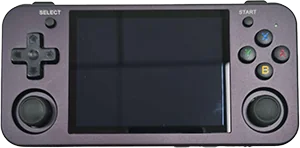
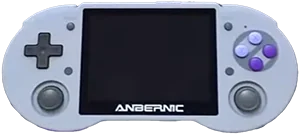
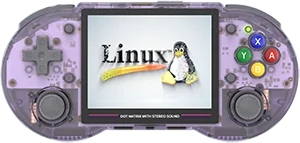
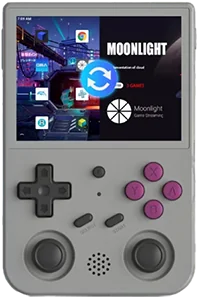
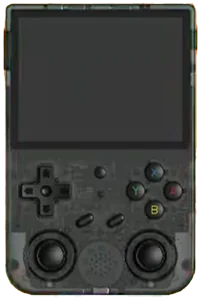
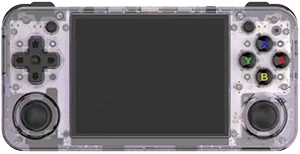
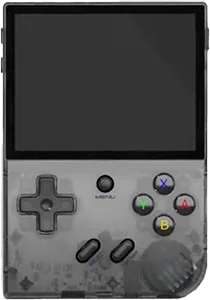
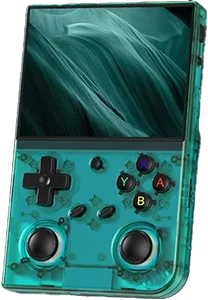
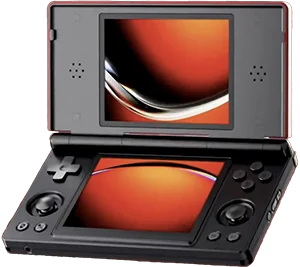
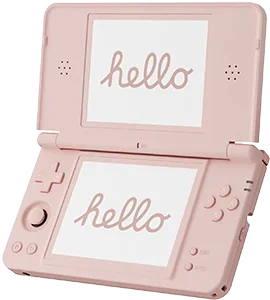
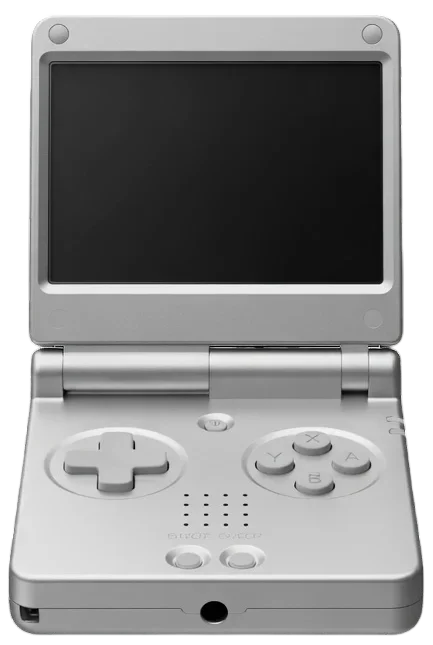
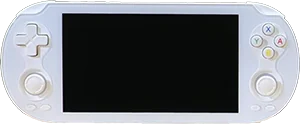
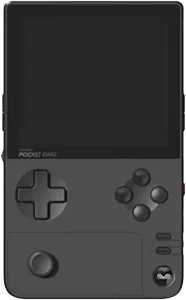
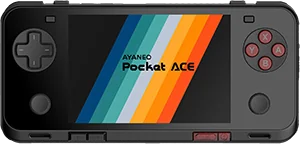
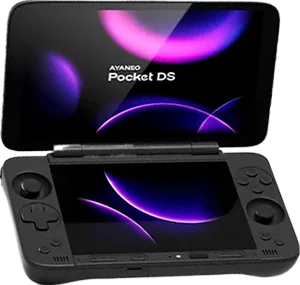
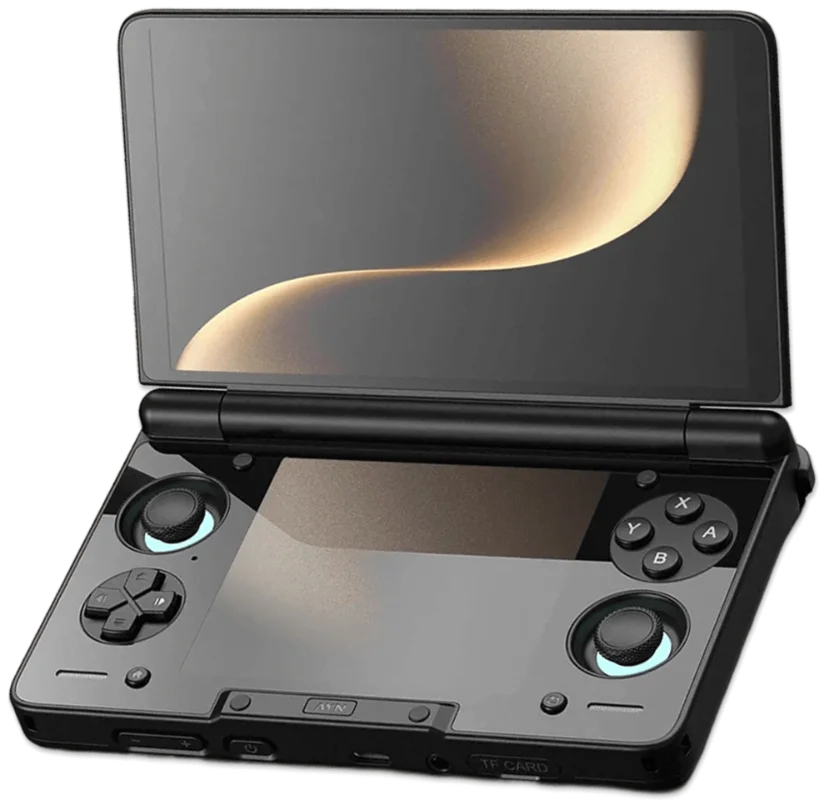
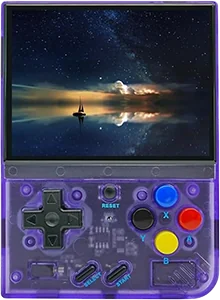
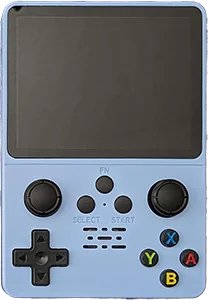
The retroshelf plugin works on ROCKNIX devices with Wi-Fi. These are currently supported:
Anbernic
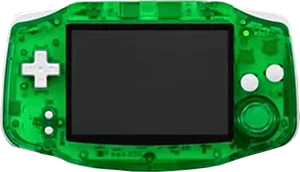
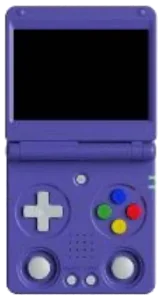
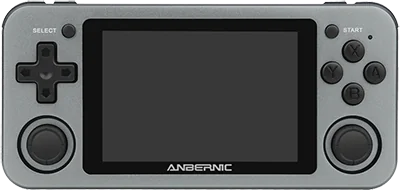
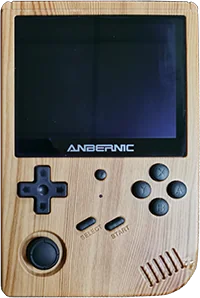
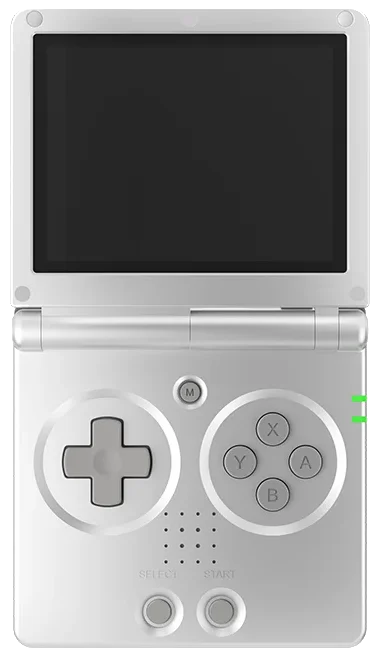
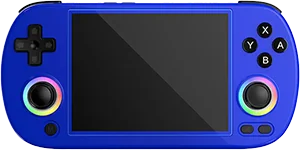
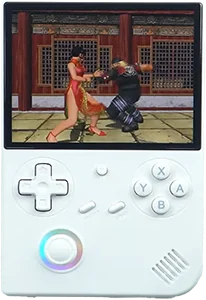


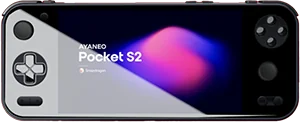
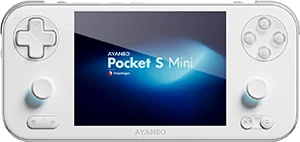
AYN Technologies
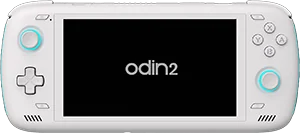
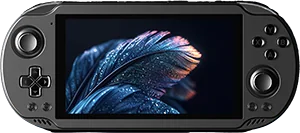
BATLEXP
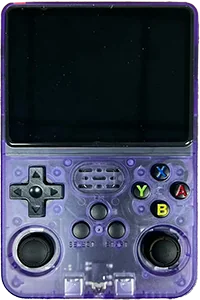
GameForce
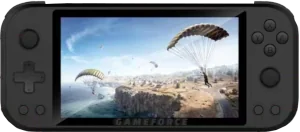
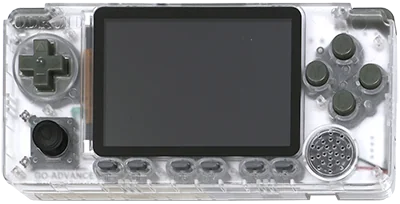
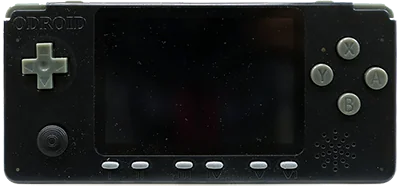
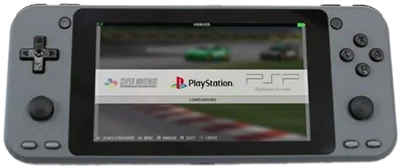
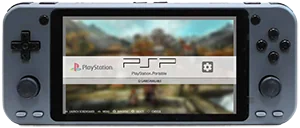

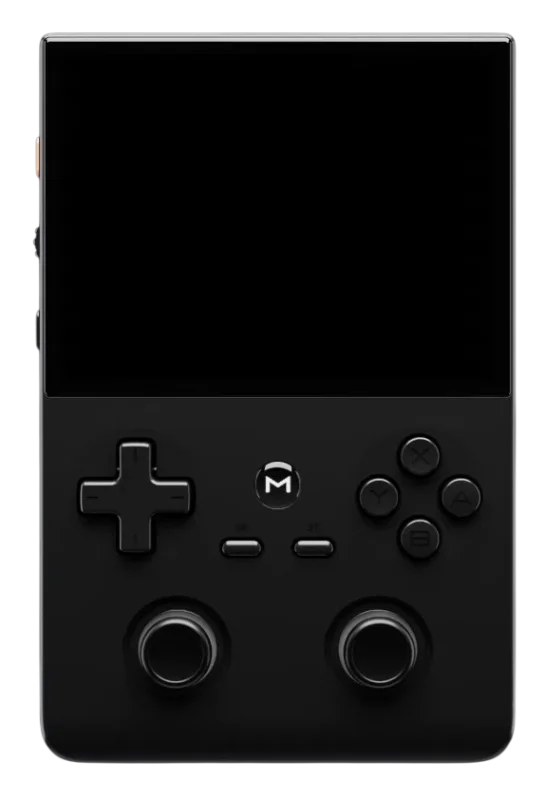
PowKiddy

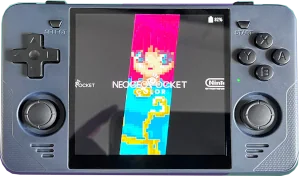
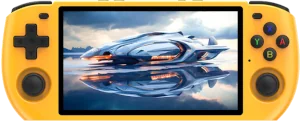
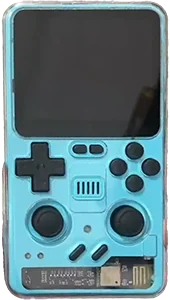
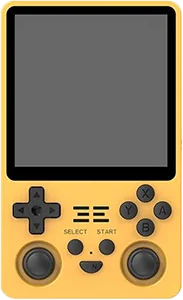


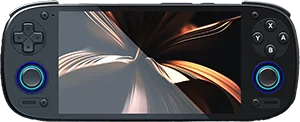
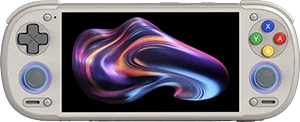
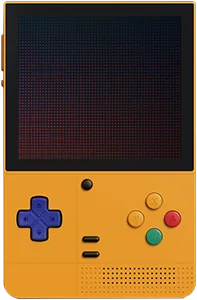
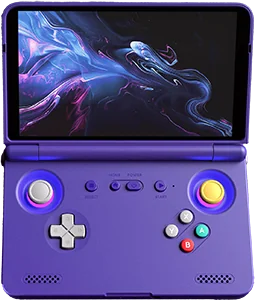
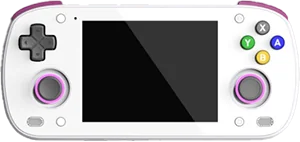
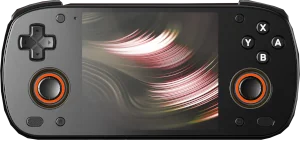
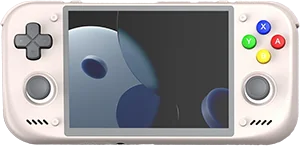
Don't see your device? If it runs ROCKNIX and has Wi-Fi, the plugin should work.
Set up in under 5 minutes
Download the plugin and link your ROCKNIX device.
Questions
Does the retroshelf plugin need Wi-Fi to track play time?
Wi-Fi is only needed to link and sync. When you're offline, sessions queue on the device and sync automatically the next time you're connected.
How does retroshelf record sessions on ROCKNIX?
The first time you launch retroshelf, it installs two small scripts that EmulationStation runs whenever a game starts or ends. They record each session locally, and retroshelf syncs it to your collection.
Will my play time from before I installed retroshelf show up?
Yes. When you first link the device, retroshelf imports the total play time EmulationStation has already recorded for each game, once.
Do I need to refresh the games list after installing?
Yes. ROCKNIX only picks up new Ports entries after you update the gamelists (Start menu → Game settings → Update gamelists) or reboot the device.
How do I uninstall the retroshelf plugin?
To unlink, go to Settings on retroshelf and revoke the device. To uninstall, first run retroshelf/bin/retroshelf-uninstall.sh to remove the game scripts and synced state (add --keep-data if you plan to reinstall), then delete retroshelf.sh and the retroshelf/ folder from /storage/roms/ports/.